Clean Power Research Support Center logo

PowerClerk Support Center

Project Pages
Project Admin Page
Locating the Project Admin Page
How to Use the Project Admin page
Project View/Edit Page
Locating the Project View/Edit Page
How to use the Project View/Edit Page
Program Design Menu
Automations
Questions to Ask
Locating the Automations feature
How to create an Automation
Automation Triggers
Automation Action Rules
Validation Rules
Scheduled Triggers
Troubleshooting Automations
FAQs
Channels
Questions to ask yourself
Locating the Channels feature
What are Channels?
Types of Channels
Channel Type: Mark as Child
Channel Type: Make Successor
Channel Type: Create Related Project
Channel Type: Submit Related Project
Channel Type: Project Lookup
How to create a Channel
Channel Signals and Automations
Updating Channel Configurations
Using Channels in Test Environments
FAQs
Communications
Questions to ask yourself
Locating the Communications feature
Creating Communication templates
Finding Data Tags
Images in Communications
Sending Mass Communications
Project Attachments and Content Library Items
Smart Templates
Upgrading to Smart Templates
Upgrading when a Test Environment Exists
Broken Template Tags
Examples of Broken Template Tags
PowerClerk Mass Communication Policy
FAQs
Connections
Questions to ask yourself
Locating the Connections feature
What are Connections
How to Create a Web Connector
Define the Web Connector
Connecting, Testing, and Enabling the Web Connector
Creating a Web Connector Configuration
Utilizing Connections on PowerClerk
Maintaining and Editing the Web Connector
Web Connector Payload Type Format
Retrieving Project Information via Built in Fields
Error Handling
Custom List Lookup
Create a Custom List Lookup
Utilizing Custom List Lookup
FAQs
Content Library
Questions to ask yourself
Locating the Content Library feature
Uploading content to the Content Library
Use with Communication Templates
Use for Front Page content
FAQs
Custom API IDs
Questions to Ask
Locating the Custom API IDs feature
How to edit a Custom API ID
FAQs
Data Fields
Questions to ask yourself
Locating the Data Fields feature
Viewing Available Data Fields
Managing Data Fields
Attachment Data Fields
Referencing Data Fields with Template Tags
Text Validation Rules
Custom Lists and Data Field Groups
Table form element
Enabling PV + Battery Element
FAQs
Deadlines
Questions to ask yourself
Locating the Deadlines feature
What are Deadlines
How to Create a Deadline
Deadline Automation Action Rules
Utilizing Project Admin Page for Deadlines
Communication Templates for Deadlines
Deadline Set/Satisfy Options
Program-Wide Deadline Actions
Reporting on Deadlines
Deadlines in Project List Columns
FAQs
Document Templates
Questions to ask yourself
Locating the Document Templates feature
How to define a new Template
Configuring Excel Files using PowerClerk Data Field Tags
How to define a new Merged Document
eSignatures
DocuSign template tags
Mapping eSignature tags
Smart Templates
FAQs
eSignature Envelopes
Questions to Ask
Locating the eSignature Feature
What are eSignature Envelopes?
eSignature Checklist: The Prerequisites to create a new Envelope
How to set up Advanced eSignature Envelopes Step-by-Step
How to add an eSignature Envelope to a form
eSignature Automation Trigger
Viewing Completed eSignature Envelopes
Resending eSignature Notifications
Canceling eSignatures
FAQs
Forms
Questions to ask yourself
Locating the Forms feature
How to create and edit Forms
Adding data fields
Form Versions and Draft Forms
Configuring Forms
Form Field Elements
Form Field Elements
Standard Type Form Field Elements
Contact Type Form Field Elements
Document Type Form Field Elements
Layout Type Form Field Elements
Special Type Form Field Elements
Field Properties
VersaForms
Conditional Visibility
Sensitive Data Fields
Location Form Element
Address Autocomplete
Exporting a Form to Excel
VersaForms
FAQs
Formulas and Calculated Fields
Questions to ask yourself
Locating the Formulas feature
How to work with Formulas and Calculated Fields
Formula Data Dictionary
Dynamic Formula References
Rules of Formula References
Advanced Visibility Rules
Video Guides: Formulas
FAQs
Front Page
Questions to ask yourself
Locating the Front Page feature
How to edit the Front Page
FAQs
Incentive Design
Questions to ask yourself
Locating the Incentive Design feature
How to create and edit Incentive Designs
Incentive Options for One-Time Incentive Type
Incentive Design Options
FAQs
Milestones
Questions to ask yourself
Locating the Milestones feature
How to define a Milestone
FAQs
Project List Columns
Questions to ask yourself
Locating the Project List Columns feature
How to use Project List Columns
FAQs
Project Summary
Questions to ask yourself
Locating the Project Summary feature
How to edit the Project Summary
FAQs
Project Views
Questions to ask yourself
Locating the Project Views feature
How to edit Project Views
FAQs
Roles
Questions to ask yourself
Locating the Roles feature
How to create and edit a Role
Access Groups
Access Groups and Automations
Access Groups and Data Imports
Access Groups and Reports
FAQs
Themes
Overview
How Themes are Stored in PowerClerk
Creating a Theme
PowerClerk Theme Example
Workflow
Questions to ask yourself
Locating the Workflow feature
How to create and edit the Workflow
Transitions
Workflow Example Overview
FAQs
Admin Menu
Announcements
Locating the Announcements feature
Creating an Announcement
Triggering an Announcement
Managing Announcements Topic List
Managing Announcement Topic Enrollment Via User Account
Prerequisites for Using Announcements
Business Days
Questions to ask yourself
Locating the Business Days feature
Setting up Business Days
FAQs
Dashboards
Questions to ask yourself
Locating the Dashboards feature
How to create widgets in your Dashboard
Other Dashboard Actions
Data Import
Questions to ask yourself
Locating the Data Import feature
Steps to Complete a Data Import
Data Import Configurations
Column Header Types
Automatic Data Imports via SFTP
Revert Data Imports
FAQs
Duplicate Check
Questions to ask yourself
Locating the Duplicate Check feature
How to use Duplicate Checks
FAQs
ePayment History
Locating the ePayments History feature
Using ePayment History
ePayment Management
Locating the ePayments Management feature
What is ePayment Management
Set Up Stripe ePayments
Configuring Transaction Fees
Configuring Payment Methods Availability
Import Projects
Questions to ask yourself
Locating the Import Projects feature
How to Import Projects
Managing Data Field Mappings
Copying Projects
Creating Projects
FAQs
Operation Status
FAQs
Questions to ask yourself
How to use the Operation Status feature
Locating the Operation Status feature
Program Info
Project Inquiry
Locating the Project Inquiry feature
How to edit the Project Inquiry Settings
Automating Communications for Project Inquires
Inquiry Summary
Questions to ask yourself
Locating the Program Info feature
How to edit the Program Info menu
Notification Banners
Usage Info
FAQs
Program Statistics
Questions to ask yourself
Locating the Program Statistics feature
FAQs
How to use Program Statistics
Reports
Questions to ask yourself
Locating the Reports feature
How to setup Reports
Multi-instance reports
Sharing Reports
Integrate scheduled Reports
Cross-Program Reports
Handling Sensitive Data in Reports
Viewing Report Failures
Maximum Number of Columns Allowed in a Report
FAQs
User Administration
Questions to ask yourself
Locating the User Administration feature
How to work with User Administration
FAQs
Test Environment
What are Test Environments
Locating the Test Environment feature
How to Open a Test Environment
Questions to ask yourself
Test Environment Behavior
PowerClerk Sandbox Instance
FAQs
Tools Menu
My Account
Questions to Ask
Locating the My Account feature
How to use the My Account feature
Lockouts and Password Resets
Setting up Multi-Factor Authentication
Missing, lost, or stolen mobile devices: resetting Multi-Factor Authentication
Disabling Multi-Factor Authentication
Recovery Guidelines for MFA Administrators
FAQs
FormSense
Questions to Ask
Locating the FormSense feature
How to use the FormSense feature
FAQs
Grant Access
Project Grants vs Broad Grants (i.e. "Grant Access")
Questions to Ask
Locating the Project Grant feature
Locating the Grant Access feature
How to use the Grant Access feature
FAQs
Integration Guides & API
ePayments
Questions to ask yourself
How to Integrate with ePayment Provider
How to Set up ePayments on a Form
Managing ePayments
Reporting on ePayments
ePayments in Test Environments
How to add ePayments
FAQ
PowerClerk API
Integrating with the PowerClerk API
Questions to Ask
What is the PowerClerk API?
API Documentation for Developers
What can the PowerClerk API do?
Single Sign On (SSO)
Questions to Ask
PowerClerk SSO Configuration
Entra ID Configuration (SAML)
Entra ID Configuration (OIDC)
Okta IDP Configuration (SAML)
SP Configuration
SSO for multiple programs
IDP Configuration Troubleshooting
FAQs
Integration Guide 001: How to configure an ArcGIS Connector – ArcGIS Implementation
Integration Guide 002: How to configure Electric Power Research Institute’s (EPRI) DRIVE Connect software with PowerClerk
PowerClerk Video Guides
Setting up Roll-up Reports
New User Video Guide
Configuring Forms
Roles and User Administration
Setting up Business Days
Formulas and Advanced Visibility Rules
Visualize Workflows
Dashboards
FormSense
Edit Forms - Tutorial #1
Milestones
ArcGIS
SFTP Automatic Data Import
Calculated Fields
Project Summary
Automation with Formulas in Action Rules
Web Connector Setup
Edit Forms - Tutorial #2
API
Build A Formula
Help Articles
Distributed Energy Resource (DER) Form Elements
Built-in Elements
Available Data Fields
Data Sources
Inverter Filtering
Estimated Production Calculation
FAQs
How to Submit a Support Ticket
Understanding Your PowerClerk Program Design
Workflow
Forms
Automations
Communications
Data Fields
Deadlines
PowerClerk Program Launch
PowerClerk User Group Sessions (UGS)
Learning Management System (LMS)
Join us for Reflow!
NEW: PowerClerk Certifications

VersaForms

Explore the Versatility of VersaForms with the Following Options.

Forms feature


Questions to ask yourself about VersaForms:

Does a login page present a barrier to certain users?
Which Forms would be best accessed through a login-free link?
What formatting would maximize the user experience?

Using VersaForms to Create Projects

For most use cases, PowerClerk is meant to be used by Applicants who create a PowerClerk account and log in to interact with their projects over the course of a multi-step application process. Many solar installers, for example, have PowerClerk accounts with access to a number of utility interconnection programs. They log in often to submit or take next steps on many projects.
 
However, for smaller programs such as simple rebate requests, a program designer may wish to allow a user to create a PowerClerk project without needing a PowerClerk login. Homeowners making a Transfer of Ownership request for an approved solar project frequently appreciate being able to submit that request via a form embedded on their utility’s website instead of having to create a PowerClerk account. VersaForms are the perfect solution for these use cases.
 
Any PowerClerk Form can be set up as a VersaForm by navigating to Program Design >> Forms >>, expanding the respective form and clicking the Configure Form button to enter the VersaForm configuration dialog as shown below:
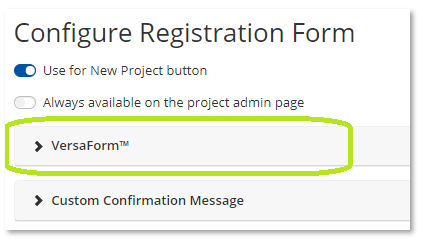
 

Enable VersaForm option

Figure 1: Enable VersaForm option

 
VersaForms that create new projects can be presented to users in two distinct ways:

  1. Embed the VersaForm in any website by copying two lines of code (e.g. for Energy Efficiency Rebate programs).
  2. Link to a VersaForm from a Communication Template sent as an E-Mail.
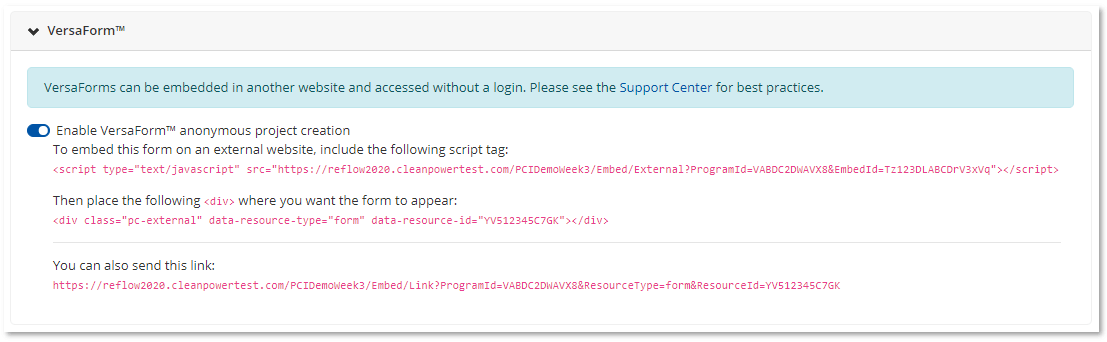
 

VersaForm code snippet

Figure 2: VersaForm code snippet and direct link


Code snippets used to embed a form on a website, and a direct link, which can be sent directly to users, are shown in red text.


Existing Projects and VersaForms

Existing project VersaForms, the counterpart to new project VersaForms, allow for a Form to be accessed and updated via an authenticated link, without requiring the user to log in. Once a program designer has received an EmbedID for a program via PowerClerk’s Ticket System to enable VersaForms, the configuration option can be found under Program Design >> Forms >> expanding the respective Form and clicking the Configure Form button:
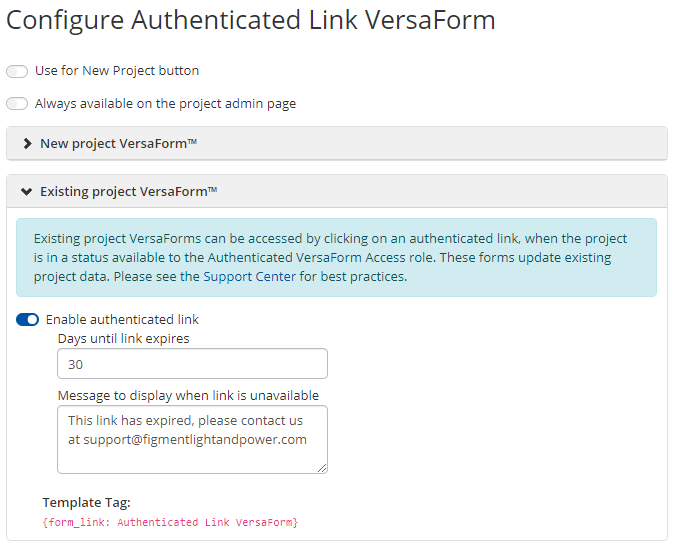
 

Existing projects and VersaForms

Figure 3: Existing projects and VersaForms

 
As shown in above screenshot, the Template Tag for this specific Form {form_link: <Form name>} can be embedded in a Communication Template. The recipient (e.g. a homeowner who interacts with PowerClerk only via their solar installer) is then able to click the authenticated link which allows them to submit this particular VersaForm for the existing project:
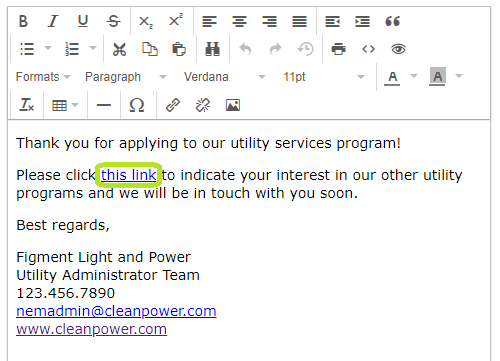
 

Communication Template example

Figure 4: Communication Template example

 
Notably, the authenticated link can be defined to expire, and upon expiration, show a customizable expiration message. The availability (or access) may also be mapped to specific statuses in the program’s Workflow. Similarly, the Communication Template may be mapped to certain statuses so that Administrators cannot manually send the message if the link is configured to be unavailable.
 
By using a combination of a new project VersaForms and existing project VersaForms, a user’s email address can be confirmed, allowing further information to be obtained from this “qualified” email address.
 
The below screenshot shows an example existing project VersaForm, only accessible through the authenticated link:
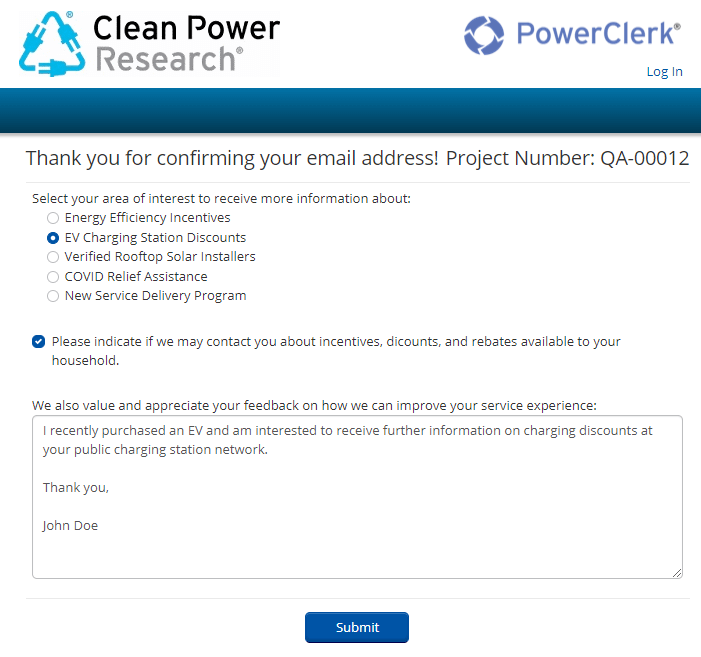
 

Authenticated Link VersaForm Example

Figure 5: Authenticated Link VersaForm Example
VersaForms: Custom Font-size and Font-family Parameters

Two optional customization parameters allow program designers to set the font-size and font-family for embedded VersaForms: data-font-size-px and data-font-family. These parameters need to be added to the script tag used to embed a VersaForm:

  • data-font-size-px: the value of this parameter should be a number that represents the desired font size. It should not include the px part.
  • data-font-family: the value of this parameter should be the name of the desired font family. It is the responsibility of the hosting page to make sure the actual font files are loaded as well.

Example:
<script type="text/javascript"
     data-font-size-px="17"
     data-font-family="sans-serif"
     src="<-- VersaForm script link -->" >
</script>


VersaForms: reCAPTCHA Option

reCAPTCHA for Versa Forms allows to secure anonymous form submissions. This option can be configured under Program Design >> Forms >> by expanding the respective VersaForm and clicking the Configure Form button >> option “Enable reCAPTCHA” as shown below:
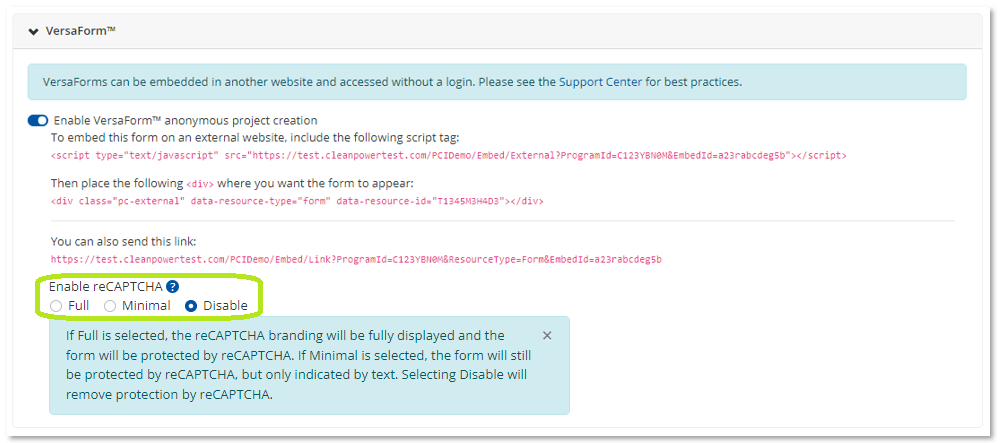
 

 reCAPTCHA option

Figure 6: reCAPTCHA option

 
This will enable the reCAPTCHA protection during submission of a VersaForm to prevent spam submissions to the VersaForm:
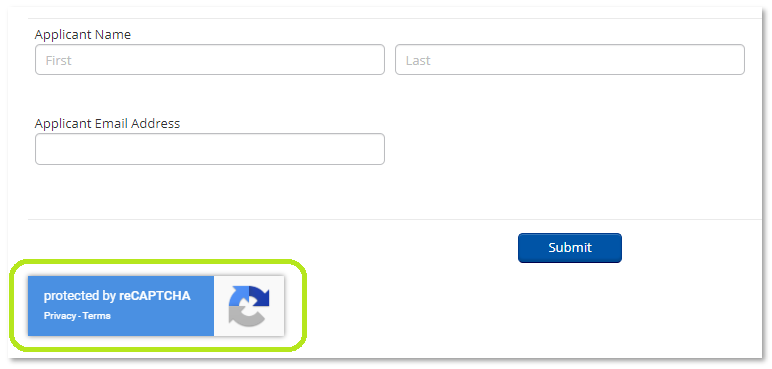
 

 reCAPTCHA option

Figure 7: reCAPTCHA option

Video Guides

A full list of all Video Guides can also be found here.

FAQs

Q: I want to create a read only field to store the application fee amount, but prevent edits to this field, how can I do this?
A: The wrong way to go about this is to try and create a read-only field and assign a default value to this field. Such default values unfortunately are not saved upon form submission as read-only fields are intended for the purpose of displaying data that has been previously submitted.
The correct approach to accomplish what you are intending is to create a formula that contains the constant value, then save and enable that formula, and then connect the Formula Result element in your respective form field. This way the value for this field will be properly saved.
Q: Can I add HTML formatting to static text form fields?
A: Yes, within PowerClerk forms you can utilize a broad variety of formatting options to style your static text form elements according to your needs. Please click on this link for a list of available HTML formatting tags that you can add to static text form fields.
Q: If you have a set of fields on a form (e.g. Form 1) that are also utilized on other forms (e.g. Form 2), do we need to update the same field value on each form or just update the field on Form 1 in order reflect the same data in the same data field on Form 2?
A: You would only need to update the Data Field on Form 1 to have Form 2 reflect the same change in data. Please note that for this to work, the data field on Form 1 would need to have the same Field Name as the data field on Form 2 as shown below:
Field name configuration
Q: How can I make a field's appearance conditional?
A: Most fields can be configured to be conditionally visible. Conditional visibility enables the administrator to specify the condition under which the field becomes visible/invisible to the applicant, and thus enables the form to adjust its requirements dynamically. Dynamic forms minimize applicant confusion by hiding fields that aren’t pertinent, thus reducing the overall length of the application, and the number of opportunities for an applicant to make a mistake.
In the example below, the administrator is specifying that the Please Describe field is only visible when the applicant selects ‘Other’ in the preceding field: “Generation Type – Prime Mover.” Naturally, if the generation type was defined in a different entry in the drop-down list, the applicant wouldn’t need to specify the generation type in a text field.
Conditional Visibility Settings:
Conditional Visibility Settings

Have additional questions? Contact us to nominate your FAQ and help others find answers to your own questions concerning this feature.

Create A Support Ticket

Not finding your answer here?  Submit a question to our support team at the PowerClerk Ticket System and leverage the PowerClerk team’s expertise.