
Distributed Energy Resource (DER) Form Elements
PowerClerk’s built-in form elements for distributed energy resources streamline the program design needed for collecting detailed equipment data.
Questions to ask yourself about DER Form Elements:
Does my process include solar, storage, or solar + storage equipment in applications?
What calculations do I need in order to process these applications?
Do I need to impose any system size or UL1741 certification requirements?
Built-in DER Form Elements
PowerClerk supports three built-in DER Form Elements: PV System, PV + Battery System, and Energy Storage System. Programs automating processes that include solar, storage, or solar + storage equipment can leverage the built-in form elements to structure their equipment data, simplify data entry, enhance data integrity, and eliminate the need to maintain an equipment list.
To add one of the DER Form Elements to a form, drag the element onto a page within the form editor:
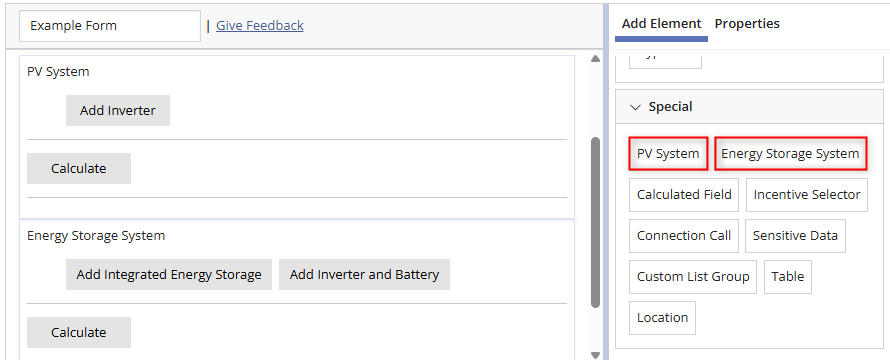
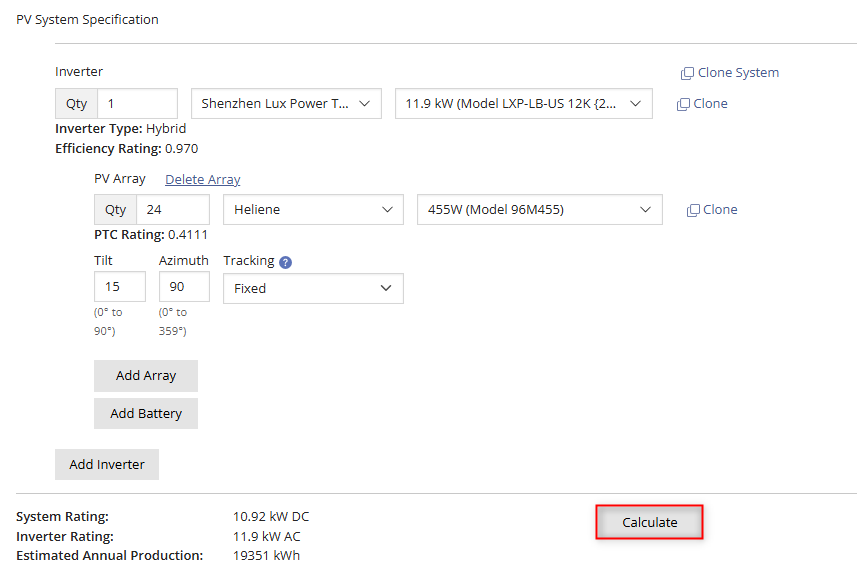
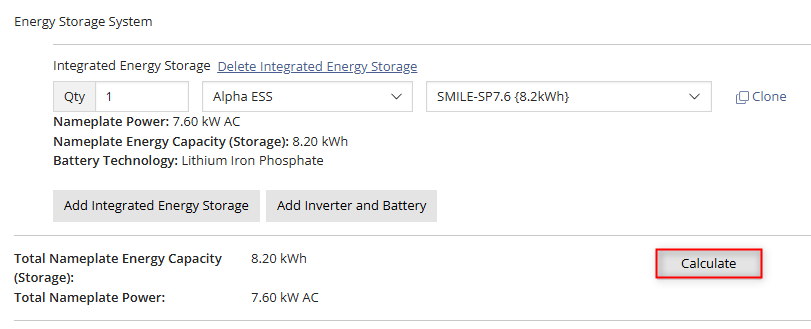
Once added to a form, an associated Data Field Group will automatically be created to structure the equipment data. When completing the form, applicants will be guided to select their equipment from the drop-down menus and then click calculate to conduct the standard calculations behind each element.
What data is available for each DER Form Element?
The PV System contains multiple data fields within its data field group. The data field group contains both system level data and equipment level data. See the table below for a description of each data field.
| PV System | ||
|---|---|---|
| Data Field Name | Type | Description |
| Inverter Nameplate Rating | Decimal | The sum of each inverter model’s quantity multiplied by its inverter rating (kW AC). Inverter Rating is the Maximum Continuous Output Power provided by the manufacturer to the CEC. |
| Nameplate Rating | Decimal | The sum of each PV module’s quantity multiplied by its panel rating (kW DC). Panel Rating is the Nameplate Pmax provided by the manufacturer to the CEC |
| PTC Module Rating | Decimal | The sum of each PV module’s quantity multiplied by its PVUSA Test Conditions (PTC) rating (kW DC). PTC Rating is provided by the manufacturer to the CEC. |
| Estimated Production | Decimal | Total estimated kWh generated by the system via calling the SolarAnywhere API. See “PV Element Estimated Production Calculation” section below this table. |
| Monthly Estimated Production | Decimal | Breakdown of the estimated production (kWh) into each month. |
| Inverter Quantity | Integer | Quantity of inverters, entered by user. |
| Inverter Manufacturer | String | Inverter Manufacturer Name, selected by user. |
| Inverter Model | String | Inverter Model Number, selected by user. |
| Average Inverter Efficiency | Decimal | Weighted average efficiency rating of all selected inverters. Weighted by inverter nameplate rating. |
| PV Module Quantity | Integer | Quantity of PV modules, entered by user. |
| PV Module Manufacturer | String | PV Module Manufacturer name, selected by user. |
| PV Module Model | String | PV Module Model Number, selected by user. |
| PV Module Tracking | String | Type of tracking system selected for each PV Array (Fixed, Single-Axis, Dual-Axis) |
| PV Module Tilt | Decimal | The angle of a panel on a roof or other mounting surface, entered by user. If Single-Axis then it is the axis of rotation (0 degrees is flat). |
| PV Module Azimuth | Decimal | The compass-direction of the module orientation, entered by user (180 degrees is facing South). |
| PV Module Monthly Shading | Decimal | Percentage of monthly shading for each array, entered by user. |
| PV Array Description | String | The text description of a PV array, entered by user. |
| CEC Rating | Decimal | The sum of each panel module’s quantity multiplied by its PTC rating and Average Inverter Efficiency (kW AC). |
| Total Nameplate Energy Capacity | Decimal | If accepting storage equipment, total storage capacity of all batteries and energy storage systems (kWh). |
| Battery Quantity | Integer | Quantity of batteries, entered by user. |
| Battery Manufacturer | String | Battery Manufacturer Name, selected by user. |
| Battery Model | String | Battery Model Number, selected by user. |
| Battery Energy Rating | Decimal | Storage capacity (kWh) for each selected battery. |
| Battery Maximum Continuous Discharge Rate | Decimal | Battery Maximum Continuous Discharge Rate provided by the manufacturer to the CEC (kW DC). |
| Battery Technology | String | Battery type as provided by the manufacturer to the CEC (Lithium Ion, Lead Acid, Lithium Iron Phosphate, etc.). |
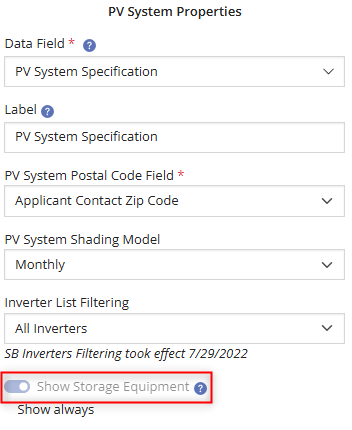
The PV System form element can be turned into a PV + Battery System form element via the “Show Storage Equipment” property. This can be done upon initially adding the element to a form, or subsequently on the Data Field Groups page. Enabling this property adds additional data fields to the relative data field group, represented by the final 7 fields in the table above. This property cannot be disabled in the relative form element once enabled.
The Energy Storage System form element also contains many data fields within its data field group. It captures both distinct inverter + battery storage configurations along with integrated energy storage systems. A “subsystem” is either the inverter or integrated energy storage system, depending on which the user selected. See the table below for a description of each data field.
| Energy Storage System | ||
|---|---|---|
| Data Field Name | Type | Description |
| Total Nameplate Energy Capacity | Decimal | The sum of each subsystem and battery quantity multiplied by its respective nameplate energy capacity (kWh). Nameplate energy capacity is provided by the manufacturer to the CEC. |
| Total Nameplate Power | Decimal | Sum of each subsystem quantity multiplied by its respective nameplate power (kW AC). See subsystem nameplate power below. |
| Total Maximum Continuous Discharge Rate | Decimal | Sum of each subsystem quantity multiplied by its respective power rating (kW AC). See subsystem power rating below. |
| Subsystem Type | String | Represents if the user chose “Inverter + Battery” or “Integrated Energy Storage” on the ESS element. |
| Subsystem Quantity | Integer | Quantity of subsystem, entered by user. |
| Subsystem Manufacturer | String | Manufacturer Name of the subsystem, selected by user. |
| Subsystem Model | String | Model Number of the subsystem, selected by user. |
| Subsystem Nameplate Power | Decimal | Nameplate Power (kW AC) for the selected subsystem. If the subsystem type is inverter + battery, this is the maximum continuous output power provided by the manufacturer to the CEC. If the subsystem type is integrated energy storage system, this is the nameplate power provided by the manufacturer to the CEC. |
| Subsystem Power Rating | Decimal | Power Rating (kW AC) for the selected subsystem. If the subsystem is inverter + battery, this is the maximum continuous out power provided by the manufacturer to the CEC. If the subsystem type is an integrated energy storage system, this is the maximum continuous discharge rate provided by the manufacturer to the CEC. |
| Subsystem Maximum Continuous Discharge Rate | Decimal | Maximum Continuous Discharge Rate for the subsystem as provided by the manufacturer to the CEC (kW AC). Blank if subsystem type is inverter + battery. |
| Subsystem Energy Rating | Decimal | Nameplate Energy Capacity (kWh) as provided by the manufacturer to the CEC. Blank if subsystem type is inverter + battery. |
| Subsystem Technology | Decimal | Battery type found within the subsystem as provided by the manufacturer to the CEC (Lithium Ion, Lead Acid, Lithium Iron Phosphate, etc.). Blank if subsystem type is inverter + battery. |
| Battery Quantity | Integer | Quantity of batteries, entered by user. |
| Battery Model | String | Battery Model Number, selected by user. |
| Battery Energy Rating | Decimal | Nameplate energy capacity (kWh) for the battery as provided by the manufacturer to the CEC. Blank if subsystem type is an integrated energy storage system. |
| Battery Maximum Continuous Discharge Rate | Decimal | Maximum Continuous Discharge Rate (kW DC) for the battery as provided by the manufacturer to the CEC. Blank if subsystem type is an integrated energy storage system. |
| Battery Technology | String | Battery type found within the subsystem as provided by the manufacturer to the CEC (Lithium Ion, Lead Acid, Lithium Iron Phosphate, etc.). Blank if subsystem type is an integrated energy storage system. |
Equipment Data Source
All equipment data is sourced from the California Energy Commission’s (CEC) approved equipment lists. The CEC updates their equipment list three times a month on the 1st, 11th, and 21st day of the month (or the following business day). The equipment lists in PowerClerk are updated the following business day.
Inverter Filtering
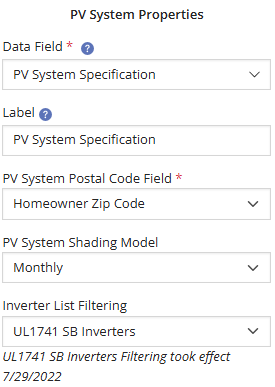
Inverters within the PV form element can be filtered to specific UL1741 certifications. For example, if a process requires equipment to be UL1741 SB certified, inverter filtering can enforce that requirement without needing to explicitly ask for it on the form. Reach out to support to request inverter filtering to be enabled.
PV Element Estimated Production Calculation
The PV system form element returns the results of an estimated production model for the selected equipment, at the associated ZIP code. Using the SolarAnywhere® CprPVForm model, the PV form element calculates an estimated total kWh the system will produce in a typical year. Program Designers select which contact or location form element indicates the physical location of the equipment. For more information on the CprPVForm model, visit the SolarAnywhere support page, or reach out to PowerClerk support.
FAQs
Have additional questions? Contact us to nominate your FAQ and help others find answers to your own questions concerning this feature.
Create A Support Ticket
Not finding your answer here? Submit a question to our support team at the PowerClerk Ticket System and leverage the PowerClerk team’s expertise.