
Agent Studio
Design, test, and monitor your Attachment Agents with a no-code workspace built for safe iteration and continuous reliability.

Questions to ask yourself about Agent Studio:
How could AI help attachment reviewers?
What are we looking for in each document or photo?
Which Data Fields hold information that we must cross-reference with each attachment?
Should all information match exactly, or are differences in spelling, punctuation, etc. acceptable?
AI Features Overview
Agent Studio is a no-code workspace for creating, configuring, testing, and monitoring Attachment Agents. Program Designers can define compliance criteria, test Agent behavior with real-world examples, and iterate safely before deploying Agents into workflows.
Attachment Agents leverage AI to assist human reviewers in analyzing unstructured files such as diagrams, contracts, images, and other documents, to ensure compliance and consistency. Agents review files against defined requirements, provide detailed assessments with supporting reasoning, and draft clear guidance for applicants. These Agents are flexible and can be tailored to organizational standards within Agent Studio. Agents can be automated to run as an automated review that provides feedback to applicants at form submission.
Please note: Agent Studio and Attachment Agents are bundled as a feature set and are available as an add-on to PowerClerk licenses. Upon licensing, PowerClerk Support will enable the feature set in your program.
Locating Agent Studio
Role-based access lets only approved users manage Agents and view their results. For programs using this feature, anyone in a Role with the Edit Roles privilege will be able to edit the following privileges on the Roles page:
- Edit and Evaluate Agents: Grants access to Agent Studio for creating, testing, and monitoring Agents.
- Show Agent Results: Allows users to run Agents and view their results on the Attachment Review page accessed from the Project Admin Page.
Anyone in a Role with the Edit and Evaluate Agents privilege can navigate to Agent Studio by opening the PROGRAM DESIGN menu and clicking on Agent Studio.
Getting Started
Setting up an Agent can be easily achieved by following these four easy steps.
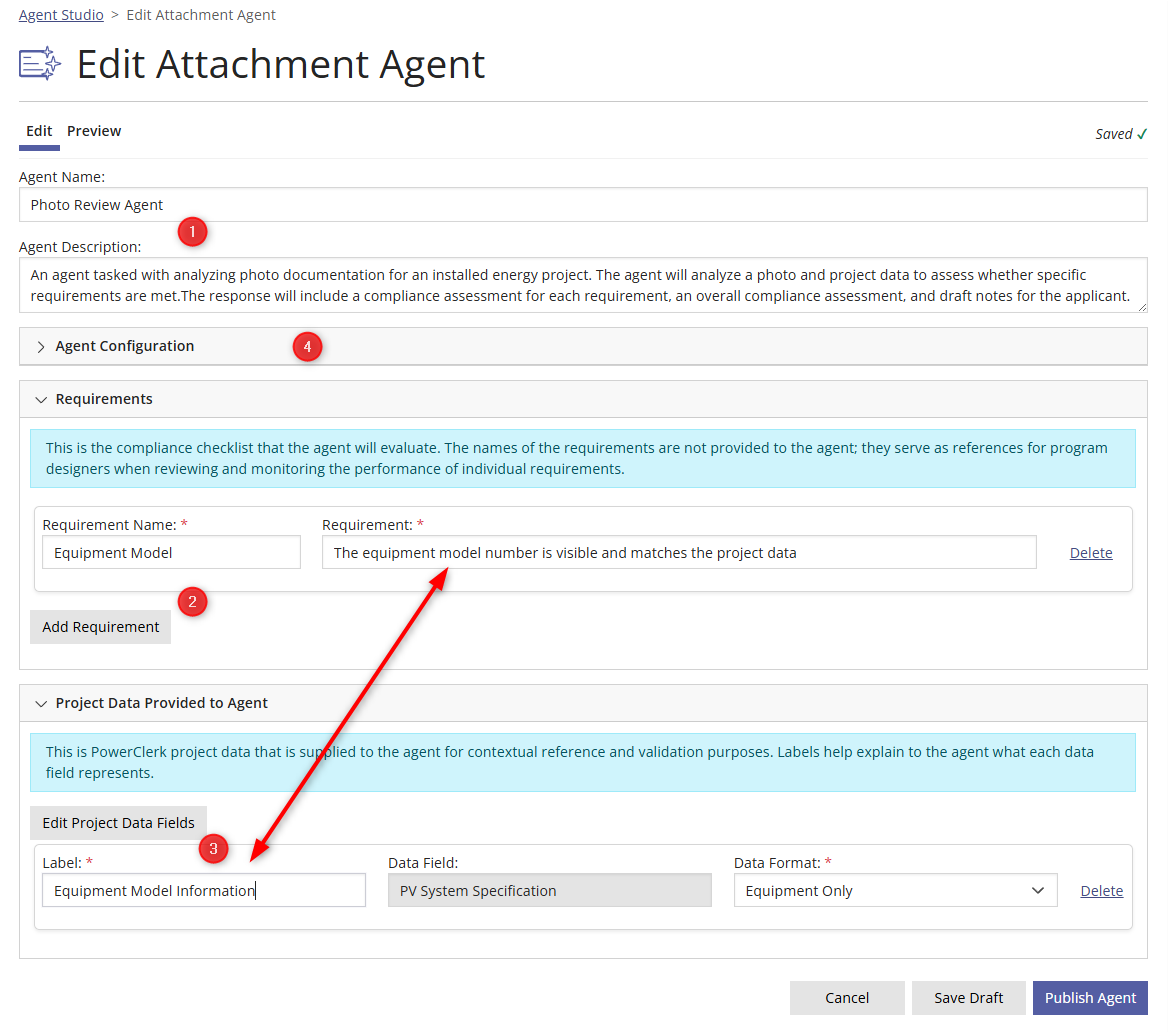
Step 1. Create an Attachment Agent by clicking the New Attachment Agent button. Select a template. Each Agent template contains specific instructions and basic requirements and can be tailored to a program’s unique needs. Give the Agent a name and description for future reference.
Step 2. Define Requirements. Requirements represent the exact checks the Agent will perform and should reflect how human reviewers evaluate attachments. The set of requirements is effectively the compliance checklist.
Edit or remove the template defaults, and add new requirements as needed. Write these in plain language while being concise and explicit.
If a requirement is conditional, begin with “(conditional)” and concisely explain the conditional logic within the requirement itself. Example: “(conditional) If present in the diagram, the total AC system size (kW) matches project data.”
More complex logic can be defined in Agent Configurations (more info below).
Give requirements intuitive names or use the defaults. These names are not used by the Agent, but can be helpful in identifying requirements as you test and monitor their performance over time.
Please note: To avoid hitting limits, we recommend less than 20 requirements per Agent.
Step 3. Select Project Data Fields. Agents don’t automatically get access to project data. The program designer needs to specify the data fields required for Agents to verify requirements and confirm consistency between the attachment and the application (e.g., installation address, equipment details and ratings).
Utilize clear and descriptive labels so Agents can accurately interpret each data field. When necessary, adjust default labels to enhance clarity and provide appropriate context. Editing here will not change the data field’s label on Forms or anywhere else.
Step 4. Configure the Agent. Optionally, advanced Agent configurations may improve accuracy in complex or ambiguous cases. Most Agents perform well with default settings. Add advanced configurations only after reviewing Agent results and identifying recurring failure patterns. Introduce changes incrementally to avoid over-constraining the Agent.
Use Special Definitions when the Agent misunderstands terminology or interprets key terms inconsistently.
Use Enhanced Validation Protocols when a requirement needs explicit logic, examples, or exceptions to be assessed correctly.
Preview Agents
The Preview feature is accessed on the Edit Agent page to conveniently test your Agent on real-world individual projects without impacting Project Data or the Project Event History.
Enter a project number and click Load Project to display the Project Data Provided to Agent, along with the project’s attachments and their respective versions.

Select the desired attachment and run the Agent. It may take up to a minute for the Agent to perform its review, depending on complexity.
Agent Drafts
New Agents begin as drafts, and you must publish them initially before configuring attachments. On the Agents page, any draft will have “(DRAFT)” appended to its name. When updating Agents, changes are auto-saved as a draft. To discard changes from your current session, click Cancel.
To go back to the published version of an Agent without applying saved changes, click Discard Draft from the Agents page.
After an Agent is published, it is not possible to return to an earlier version. Consider copying an Agent and giving it a clear, descriptive name before experimenting with Agent modifications.
Configure Attachments
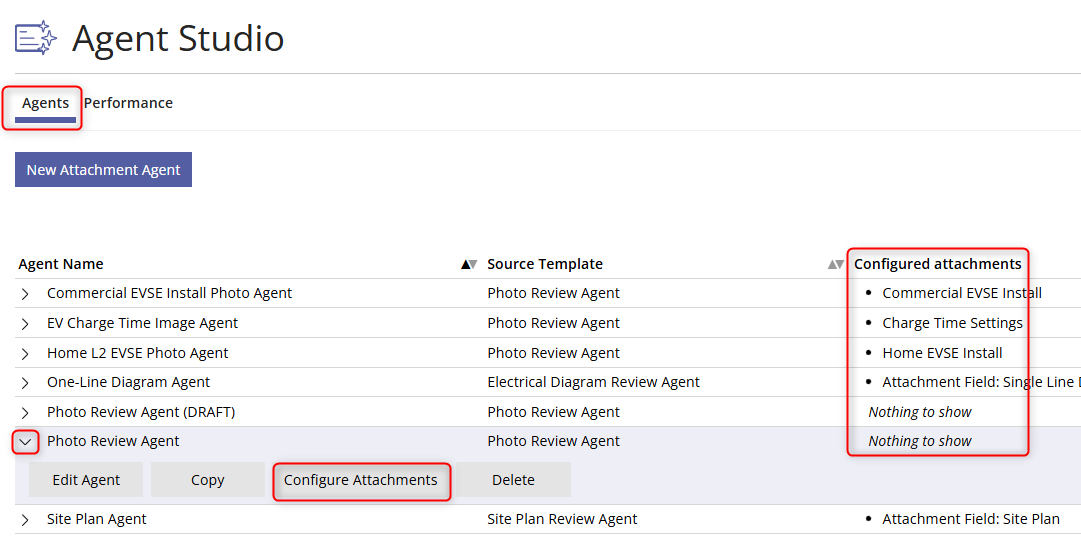
Before an Agent can be added to a workflow, you must first Publish the Agent and then configure applicable attachments. In the main Agent Studio page, select the agent and select Configure Attachments to specify one or more permitted attachments. Once saved, the configured attachments will be listed in the Configured Attachments column.
Attachment Agents are compatible with the following file formats: jpg, jpeg, pdf, png, and docx. Although it is possible to configure attachments which allow other file types, the Agent itself will fail when run on unsupported formats. As such, when creating such a configuration, you will receive a warning requiring your acknowledgment prior to proceeding. To edit which file types are allowed for specific attachment fields, edit them under Program Design >> Data Fields >> Attachments.
Monitor Agent Performance
Reviewers have the option to flag problems with Agent outputs through both the Preview page and the Project Admin Attachment Review page. Such feedback provides valuable insights that can guide modifications to Agents, enhancing their performance. All reported issues are accessible on the Performance page, allowing program designers to review feedback, download for further analysis, and enhance Agents if recurring issues are identified.

Bulk Evaluation
Bulk evaluation provides a repeatable way to test, benchmark, and monitor Attachment Agent performance across a defined set of projects—so you can confidently deploy agents in workflows. Generate test sets directly from real projects and assess agent outputs versus expected results. This allows for efficient error analysis, evidence-based improvement prioritization, version comparisons, and performance management at scale.
Generate a Test Set
Select the agent and attachment you want to evaluate. Next, upload a file that identifies the list of projects to be tested. This file must be a single-column CSV file with the column header exactly set to {ProjectNumber}.
Once the file validation succeeds, download the test set and access it from your local downloads folder. PowerClerk will not save a copy of the generated test set file; you will need to manage your test set files outside of PowerClerk.
Identify Ground Truth
Ground trust represents your authoritative assessment of whether each requirement is met for each project in your test set.
Open the downloaded test set file and populate the {GroundTruth} column for every requirement, for every project. Each value must be one of the following: Pass, Fail, N/A. These labels are strictly enforced, although they are not case sensitive.
Do not modify any other columns in the file. Their structure and contents are required for validation when running the bulk evaluation.
Run a Bulk Evaluation
Give your bulk evaluation a name. Upload the test set file with the {GroundTruth} column populated. Once validation succeeds, run the bulk evaluation.
Evaluations may take up to five minutes per 10 projects. Progress can be monitored on the Bulk Evaluation Status page.
When the evaluation completes, download the results. The results are provided as a CSV file that includes for each requirement and project: ground truth, agent assessment, and agent reasoning.
Run Attachment Agent
Run the Attachment Agent manually from the Attachment Review screen or automate it to run either before or after a form is submitted. See Automations for instructions.
Video Guides
Would a video guide help to better explain Agent Studio? Contact us and let us know.
A full list of all Video Guides can also be found here.
FAQs
Have additional questions? Contact us to nominate your FAQ and help others find answers to your own questions concerning this feature.
Create A Support Ticket
Not finding your answer here? Submit a question to our support team at the PowerClerk Ticket System and leverage the PowerClerk team’s expertise.