
Homepages
Homepages serves as a central hub, making it easier for users to access the most important information and actions they need for their projects.

Questions to ask yourself about Homepages:
Do all users view the same Homepage?
How can I configure my Homepage?
Can new projects be started from the Homepage?
Locating the Homepages feature
The Homepage feature is now enabled and will serve as the central hub for all project information.
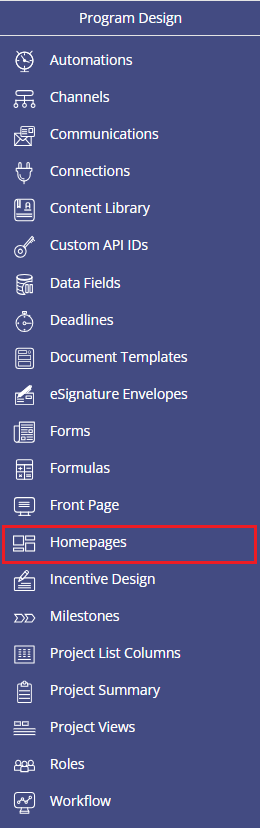
Anyone assigned a Roles with the Edit Project List Columns, Views, and Summary privilege can configure the Homepage feature by opening the PROGRAM DESIGN menu and clicking on Homepage:
What is the Homepage?
The Homepage is a central hub that helps users quickly access the most important information and actions in PowerClerk. It provides a streamlined, role-aware experience that highlights the tools and content each user needs most.
The Homepage is available to all users. If no custom configuration has been created for a program, a default Homepage will be displayed. The content shown, both on the default version and in general, depends on the user’s role:
- Administrative Roles
- Non-Administrative Roles
Please Note: Homepages cannot be disabled at the role level. Individual users can currently choose to opt in or opt out of using the Homepage. Administrators cannot prevent users from enabling it. If a user wants to view the Homepage, they will always have the option to do so.
Users can currently opt in by selecting “Try the new Homepage” and may opt out at any time from the My Account page. After the opt in period ends, we will transition to an opt out period. We strongly encourage you to submit feedback and report any issues using the Feedback button.
Homepages for Administrative Roles
Users with an Admin role will see a Homepage focused on program management. The default widgets include:
- Project Views
- Recent Activity
- Release Notes
- Inquiry Summary (if applicable)
This layout is designed to help administrators monitor program activity and access key management tools quickly.
Homepages for Non-Administrative Roles
Users without an Admin role (e.g., applicants, contractors, or other non‑program‑admin roles) will see a Homepage focused on project creation and tracking. The default widgets include:
- New Project Button(s) available to that user
- Project Views
- Recent Activity
- Inquiry Summary (if applicable)
This layout ensures that non‑admin users can easily start new projects and stay updated on their existing ones.
How to Create and Update the Homepage
Program Designers with the Admin permission Edit Project List Columns, Views, and Summary can customize both the Admin and Non‑Admin versions of the Homepage. This allows each program to tailor the Homepage experience to best support its users.
- To Create a Homepage configuration, you will need to:
- Navigate to the Homepage tab (Program Design >> Homepage)
- Select New Homepage
- A drag and drop editor will open, allowing a user to add, remove and rearrange widgets.
There are two layout options available, each tailored to the user’s role, Admin and Non-Admin. As shown below, two separate tabs allow a user to create distinct Homepages for each role. Any Homepage configured within a specific tab will apply only to the role associated with that tab.
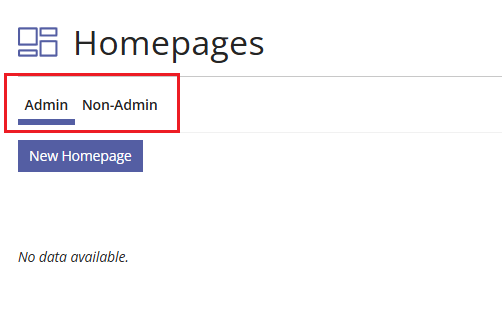
- Currently the available widgets are:
- New Project: Select up to four Forms that are configured with the New Project button. These will appear as the primary New Project actions.
- Other Requests: If the program includes more than four New Project buttons, or if certain buttons are intended to appear secondary rather than primary, they can be added within this module.
- Project Views: Displays all project Views available to the user’s Role. Counts reflect only the projects the user has permission to access.
- Recent Activity: Shows a list of the users most recently accessed projects, including unsubmitted projects.
- Inquiry Summary: This is a default widget. It is available for programs where inquiries are enabled.
- Custom Text: Allows a user to add custom text, instructions, or formatted content using traditional Markdown.
- PowerBI Report: Embed a PowerBI report directly into the Homepage.
- Dashboard Graph: Embed a configured Dashboard directly into the Homepage.
- Release Notes: A default widget for Admin users that displays the latest PowerClerk release notes.
How to Activate a Homepage
Once the Homepage configuration is complete, select Set as Active. This action publishes the Homepage to the appropriate user group. For example, activating a Non‑Admin Homepage makes it visible to all Non‑Admin users in the program.
How to Configure the New Project Widget
From the Program Design menu, open Homepages and navigate to the Non‑Admin tab. Selecting New Homepage opens the layout editor, where widgets can be added and customized.
To set up primary New Project buttons, open the New Project widget by selecting its gear icon. Up to four New Project buttons can be designated as primary, and each button supports optional customization such as an icon, card title, and description. After configuring the selections, choose Close (scrolling may be required to access the button).
Once the primary buttons are set, additional New Project options can be placed in the Other Requests widget. Add this widget to the layout, then open its settings using the gear icon. The widget can be reordered within the layout, and its title can be updated if needed. Select Close to save the widget settings.
After both widgets are added, the overall Homepage layout can be rearranged or expanded with additional widgets as desired. When configuration is complete, select Save & Preview or Save & Exit to store the changes.
Working with the Custom Text Module
The Custom Text widget is super flexible and can be used to configure Informational Widgets for your program’s Non-Admin and Admin Homepages:
The Custom Text widget can be used to provide information and general guidance to users about the program. It can support links to documents stored in the PowerClerk Content Library like program documentation and images.
Examples of simple markdown that can be used:
Headings:
# Page Title
## Section
### Subsection
Text Formatting:
**Bold** for important items
*Italic* for emphasis
Lists:
– Item
– Item
-Sub-item
– First
– Second
Links:
https://example.com
*can point to PowerClerk Content Library links
Tables
| Project | Status | Owner |
|———-|———|———|
| A | Active | Bob |
| B | Hold | Jane |
Pro Tips:
- Keep lines short.
- Use headings instead of bold for structure.
- Avoid over-formatting – Markdown works best when simple.
Video Guides
Would a video guide help to better explain Agent Studio? Contact us and let us know.
A full list of all Video Guides can also be found here.
FAQs
Have additional questions? Contact us to nominate your FAQ and help others find answers to your own questions concerning this feature.
Create A Support Ticket
Not finding your answer here? Submit a question to our support team at the PowerClerk Ticket System and leverage the PowerClerk team’s expertise.