
PowerClerk Support Center
- Project Pages
- Program Design Menu
-
- Agent Studio
- Automations
- Channels
- Communications
- Connections
- Content Library
- Custom API IDs
- Data Fields
-
- Questions to ask yourself
- Locating the Data Fields feature
- Viewing Available Data Fields
- Managing Data Fields
- Attachment Data Fields
- Multiple Choice Data Fields
- Referencing Data Fields with Template Tags
- Text Validation Rules
- Custom Lists and Data Field Groups
- Table form element
- Enabling PV + Battery Element
- Video Guides
- FAQs
- Deadlines
-
- Questions to ask yourself
- Locating the Deadlines feature
- What are Deadlines
- How to Create a Deadline
- Deadline Automation Action Rules
- Utilizing Project Admin Page for Deadlines
- Communication Templates for Deadlines
- Deadline Set/Satisfy Options
- Program-Wide Deadline Actions
- Reporting on Deadlines
- Deadlines in Project List Columns
- FAQs
- Document Templates
- eSignature Envelopes
-
- Questions to Ask
- Locating the eSignature Feature
- What are eSignature Envelopes?
- eSignature Checklist: The Prerequisites to create a new Envelope
- How to set up Advanced eSignature Envelopes Step-by-Step
- How to add an eSignature Envelope to a form
- eSignature Automation Trigger
- Viewing Completed eSignature Envelopes
- Resending eSignature Notifications
- Canceling eSignatures
- FAQs
- Forms
-
- Questions to ask yourself
- Locating the Forms feature
- How to create and edit Forms
- Adding data fields
- Field Properties
- Form Versions and Draft Forms
- Configuring Forms
- Form Field Elements
- Conditional Visibility
- Sensitive Data Fields
- Exporting a Form to Excel
- VersaForms
- FAQs
- Formulas and Calculated Fields
- Front Page
- Homepages
- Incentive Design
- Milestones
- Project List Columns
- Project Summary
- Project Views
- Roles
- Themes
- Workflow
- Admin Menu
- Tools Menu
-
- My Account
-
- How to use the My Account feature
- Questions to Ask
- Locating the My Account feature
- Lockouts and Password Resets
- Setting up Multi-Factor Authentication
- Missing, lost, or stolen mobile devices: resetting Multi-Factor Authentication
- Disabling Multi-Factor Authentication
- Recovery Guidelines for MFA Administrators
- FAQs
- FormSense
- Grant Access
- Integration Guides & API
- PowerClerk Video Guides
-
- Setting up Roll-up Reports
- New User Video Guide
- Configuring Forms
- Roles and User Administration
- Setting up Business Days
- Edit Forms - Tutorial #1
- Formulas and Advanced Visibility Rules
- Milestones
- Visualize Workflows
- Dashboards
- ArcGIS
- FormSense
- SFTP Automatic Data Import
- Calculated Fields
- Project Summary
- Automation with Formulas in Action Rules
- Web Connector Setup
- Edit Forms - Tutorial #2
- API
- Build A Formula
- Help Articles
- PowerClerk Program Launch
- Learning Management System (LMS)
- Join us for Reflow!
- PowerClerk Certifications
Workflow Insights
Bring integrated workflow analytics to your PowerClerk program automatically.
Workflow Insights Overview
Workflow Insights brings integrated workflow analytics to PowerClerk, automatically providing updated performance metrics and process insights. It is designed to help teams understand what is happening in their workflows, identify opportunities for improvement, and make better operational decisions without requiring specialized analytics expertise.
PowerClerk program managers or process owners who frequently ask any of the following questions may find Workflow Insights beneficial:
- How long do projects take until they are complete? Of that time, how long were projects with the applicant versus with the utility/energy agency?
- How often do projects require each correction loop? How long does a correction loop typically add to the overall project duration?
- How often do projects take an alternate path through the workflow? Do they take any longer than normal projects?
- Which step in our process is the bottleneck? Did improvement x, y, or z result in any notable productivity gains?
Workflow Insights is delivered as a Power BI template that includes built-in guidance and explanations for each visual and dataset found within. In addition, expanding the Data panel on the right and hovering over a data column will include a description of what the data in the column represents.

Please note: Workflow Insights is available as an add-on to PowerClerk licenses. Upon licensing, PowerClerk Support will facilitate delivery. Please “Request Workflow Insights Access” via our Ticket System, and we will follow up with a fresh copy of the Power BI template, pre-configured to your program.
Understanding Workflow Insights
Workflow Insights ingests the status transition data for all projects in a program that were submitted within a set timeframe. It then identifies the processes underway and analyzes each one independently, resulting in four new automated datasets for the program. Each dataset includes metadata, classifications, and calculations to support the template analysis and visualizations and are accessed in a similar manner to scheduled reports.
The four datasets are:
- Project Summary – one row for each project
- Status History – one row for each status transition
- Project Paths – one row for each path between critical statuses (Paths are defined in the template.)
- Timeseries – one row for each day and process
Setup in Power BI
Upon initial download of the Power BI Workflow Insights template, click the “refresh” button at the top. This will prompt the user who was set up with access to authenticate with PowerClerk.
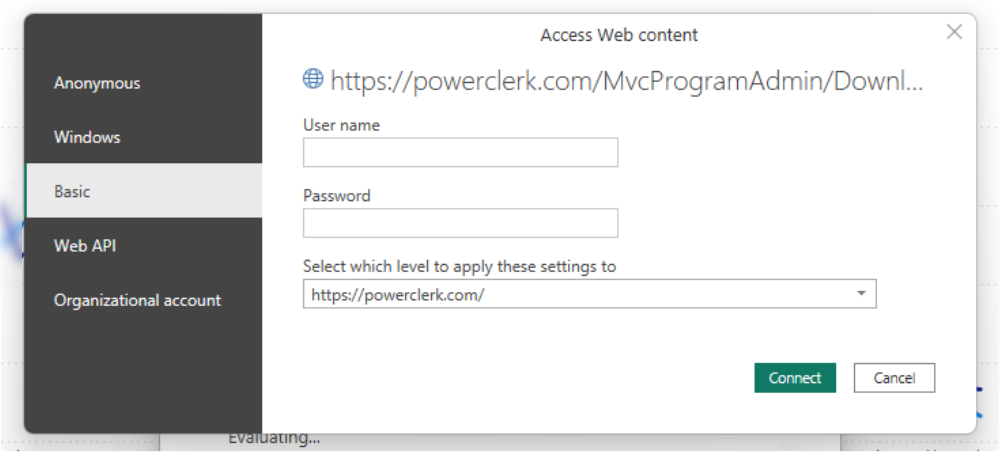
Enter the PowerClerk username and password, then click Connect. These will be stored locally on the user’s machine, so it only needs to be done once for all future refreshes.
FAQs
Have additional questions? Contact us to nominate your FAQ and help others find answers to your own questions concerning this feature.
Create A Support Ticket
Not finding your answer here? Submit a question to our support team at the PowerClerk Ticket System and leverage the PowerClerk team’s expertise.