
PowerClerk Support Center
- Project Pages
- Program Design Menu
-
- Agent Studio
- Automations
- Channels
- Communications
- Connections
- Content Library
- Custom API IDs
- Data Fields
- Deadlines
-
- Questions to ask yourself
- Locating the Deadlines feature
- What are Deadlines
- How to Create a Deadline
- Deadline Automation Action Rules
- Utilizing Project Admin Page for Deadlines
- Communication Templates for Deadlines
- Deadline Set/Satisfy Options
- Program-Wide Deadline Actions
- Reporting on Deadlines
- Deadlines in Project List Columns
- FAQs
- Document Templates
- eSignature Envelopes
-
- Questions to Ask
- Locating the eSignature Feature
- What are eSignature Envelopes?
- eSignature Checklist: The Prerequisites to create a new Envelope
- How to set up Advanced eSignature Envelopes Step-by-Step
- How to add an eSignature Envelope to a form
- eSignature Automation Trigger
- Viewing Completed eSignature Envelopes
- Resending eSignature Notifications
- Canceling eSignatures
- FAQs
- Forms
-
- Questions to ask yourself
- Locating the Forms feature
- How to create and edit Forms
- Adding data fields
- Field Properties
- Form Versions and Draft Forms
- Configuring Forms
- Form Field Elements
- Conditional Visibility
- Sensitive Data Fields
- Exporting a Form to Excel
- VersaForms
- FAQs
- Formulas and Calculated Fields
- Front Page
- Incentive Design
- Milestones
- Project List Columns
- Project Summary
- Project Views
- Roles
- Themes
- Workflow
- Admin Menu
- Tools Menu
-
- My Account
-
- Questions to Ask
- Locating the My Account feature
- How to use the My Account feature
- Lockouts and Password Resets
- Setting up Multi-Factor Authentication
- Missing, lost, or stolen mobile devices: resetting Multi-Factor Authentication
- Disabling Multi-Factor Authentication
- Recovery Guidelines for MFA Administrators
- FAQs
- FormSense
- Grant Access
- Integration Guides & API
- PowerClerk Video Guides
-
- Setting up Roll-up Reports
- New User Video Guide
- Configuring Forms
- Roles and User Administration
- Setting up Business Days
- Formulas and Advanced Visibility Rules
- Visualize Workflows
- Dashboards
- FormSense
- Edit Forms - Tutorial #1
- Milestones
- ArcGIS
- SFTP Automatic Data Import
- Calculated Fields
- Project Summary
- Automation with Formulas in Action Rules
- Web Connector Setup
- Edit Forms - Tutorial #2
- API
- Build A Formula
- Help Articles
- PowerClerk Program Launch
- PowerClerk User Group Sessions (UGS)
- Learning Management System (LMS)
- Join us for Reflow!
- NEW: PowerClerk Certifications
Duplicate Check
Identify projects containing duplicate data automatically or ad-hoc with Duplicate Checks to discover duplicate projects, improve reporting accuracy and save you time on project review.

Locating the Duplicate Check feature
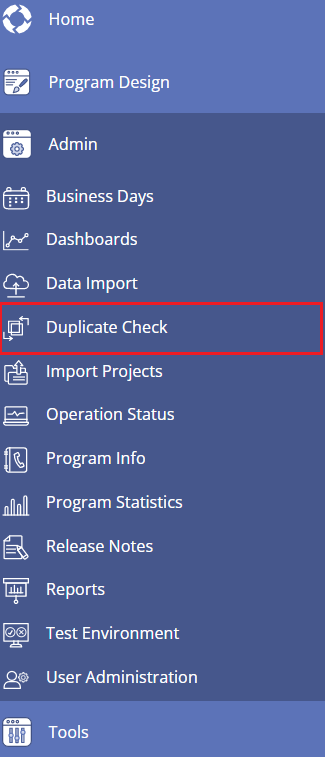
Anyone in a Role with the Edit Project Duplicate Config privilege can configure the Duplicate Check feature by opening the ADMIN menu and clicking on Duplicate Check:
How to utilize the Duplicate Check feature
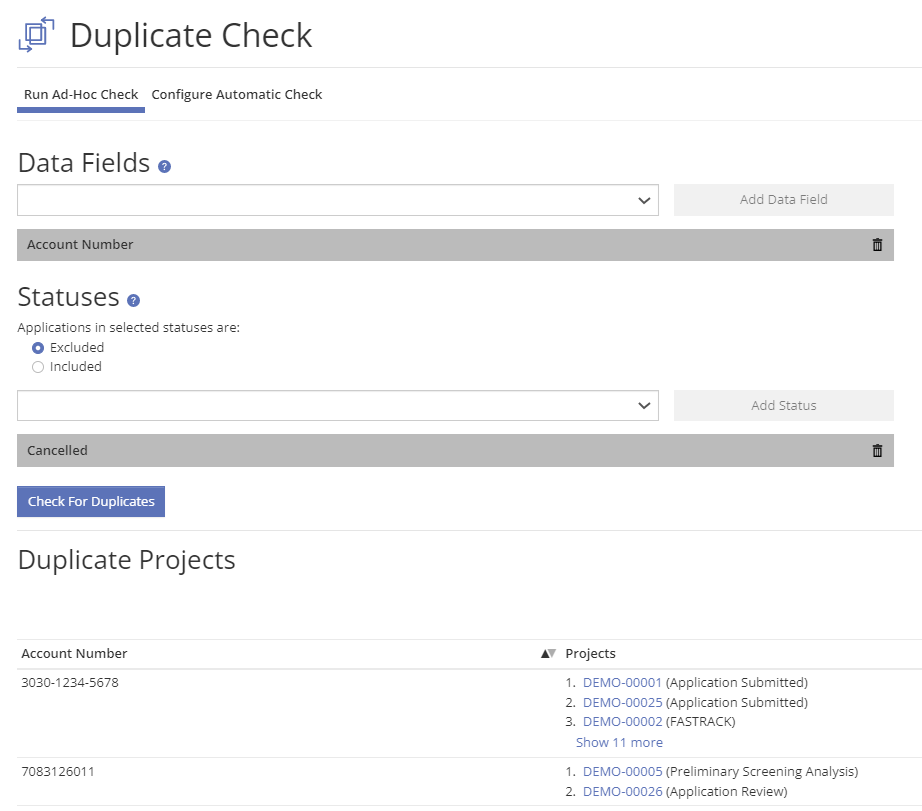
PowerClerk’s Duplicate Check feature allows you to search projects for duplicate data entries. As an example use case, an administrator may evaluate projects containing the same “account number” to screen for duplicate project submittals. You can choose to run an Ad-Hoc duplicate check or configure a program-wide Automatic duplicate check that appears on the Admin Project Page.
To run an Ad-Hoc duplicate check, first define the data field(s) you wish to check against. A project is considered a duplicate if values within the selected data fields match those of another project. Therefore, if a duplicate check is configured for data field “A” and data field “B” matching data would need to be found among field A and among field B for the checker to surface a duplicate project. You may also choose to include or exclude projects in certain Workflow statuses. After you have selected your preferences for the duplicate check, click the “Check for Duplicates” button and review the results.
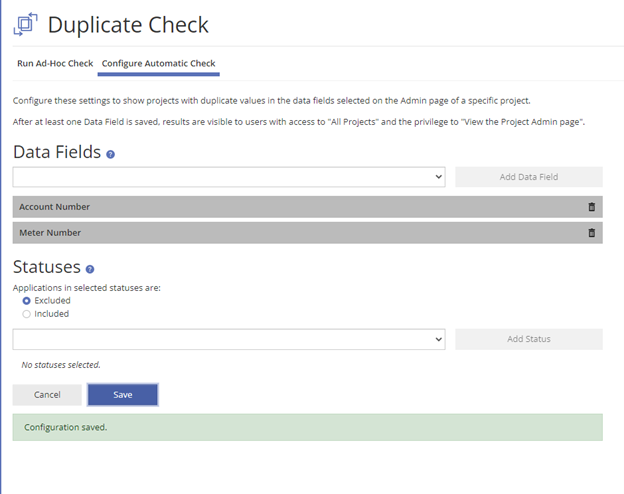
To configure an Automatic Check against certain data fields, open the Configure Automatic Check tab. Add your data field(s), select statuses as needed, and save the configuration. Just like an Ad-Hoc duplicate check, if more than one data field is defined, matching data must be detected among two or more projects for each data field included in the configuration.
For example, this Automatic Check will return a result if the Account Number’s value and the Meter Number’s value match for two or more projects
The Automatic Check configuration will generate a new section on the Admin Page of a project. If one project’s data matches another project’s data as configured within the automatic duplicate check, a result will appear for your review.
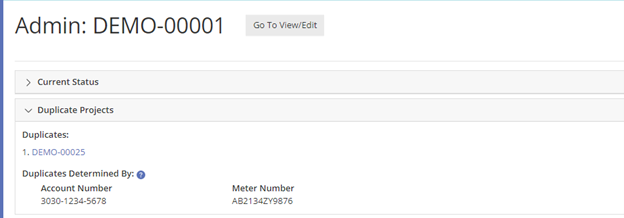
Please note: The Duplicate Check feature does not scan unsubmitted projects for duplicates, but can be used from the Admin page of an unsubmitted project to search for duplicates among submitted projects.
FAQs
Have additional questions? Contact us to nominate your FAQ and help others find answers to your own questions concerning this feature.
Create A Support Ticket
Not finding your answer here? Submit a question to our support team at the PowerClerk Ticket System and leverage the PowerClerk team’s expertise.