
ePayment Management
Locating the ePayments Management feature
Note: To enable the ePayment Management page, please contact your account executive for additional information. This enhancement is only available for programs that use Stripe as their ePayment provider.
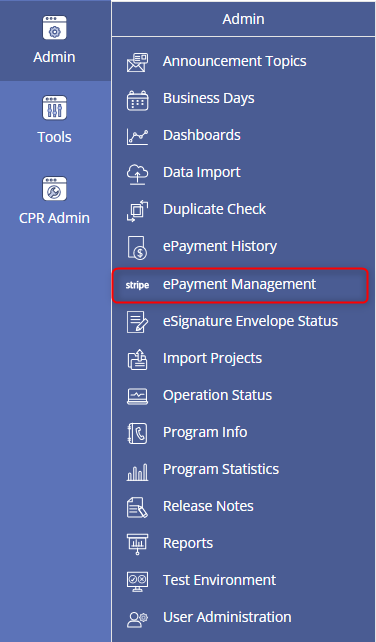
Anyone in a Role that has program admin enabled and uses the Stripe provider for ePayments along with the Stripe enhancements enabled by a CPR Admin can manage their Stripe integration by opening the Admin menu and clicking on ePayment Management:
What is ePayment Management
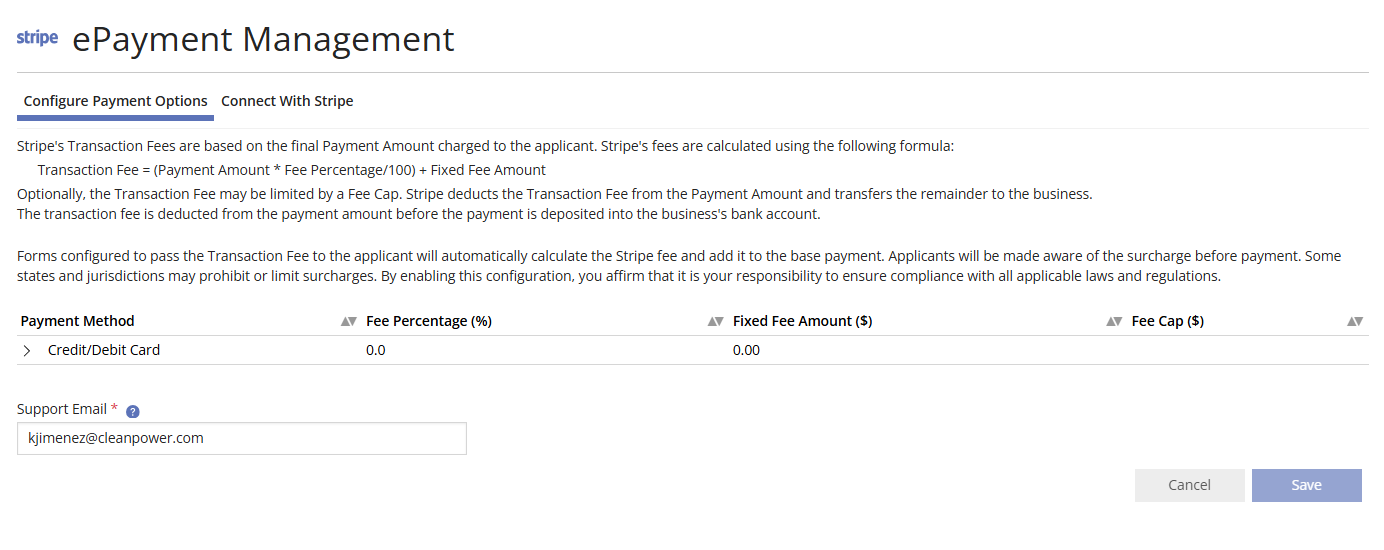
The ePayment Management feature provides utilities using Stripe with greater configuration control over their program’s payment settings. This page allows you to:
- Define the transaction fees for each payment method
- Specify the email address to be used for notification in the event of an ePayment misconfiguration on the Configure Form page
Additionally, the Connect with Stripe functionality has been relocated and is now available as a tab within this page.
Set Up Stripe ePayments
To process Stripe payments through PowerClerk you will need to connect the Stripe account to your production PowerClerk program. This process entails the following steps outlined below. Once the accounts are connected, you will need to configure your payment forms so that ePayments are enabled.
Stripe Dashboard:
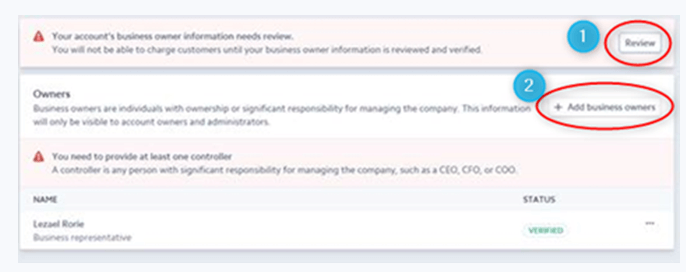
To Connect the Stripe account to your PowerClerk program:
- Log in to PowerClerk and Stripe
- From the ePayment Management page, select the tab Connect with Stripe
- Click the button to “Connect with Stripe” and follow the instructions:
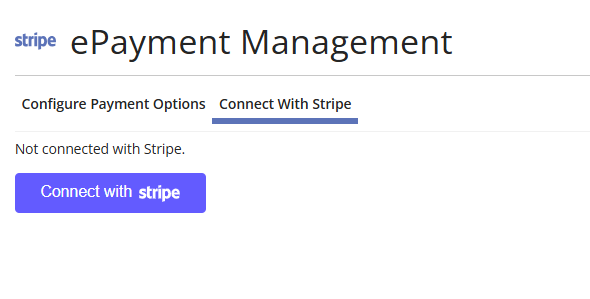
Stripe will not process any payments until PowerClerk is connected to a Stripe account. Once connected, ePayments can be configured on forms. For step-by-step guidance on form configuration, please refer to the ePayments Integration article.
Configuring Transaction Fees
Stripe sets transaction fees individually for each customer. By entering the fee parameters for each payment method on the ePayment Management page, PowerClerk can calculate the total charge amount, ensuring the transaction fee is passed on to the payer.
Transaction fees can be defined using the following formula:
Transaction Fee = (Payment Amount × Fee Percentage / 100) + Fixed Fee Amount
Both the Fee Percentage and Fixed Fee Amount are entered by the Program Designer.
Note: The Fee Percentage should be entered as a percentage (e.g., ‘2.5’ for 2.5%), not as a decimal equivalent (e.g., not ‘0.025’).
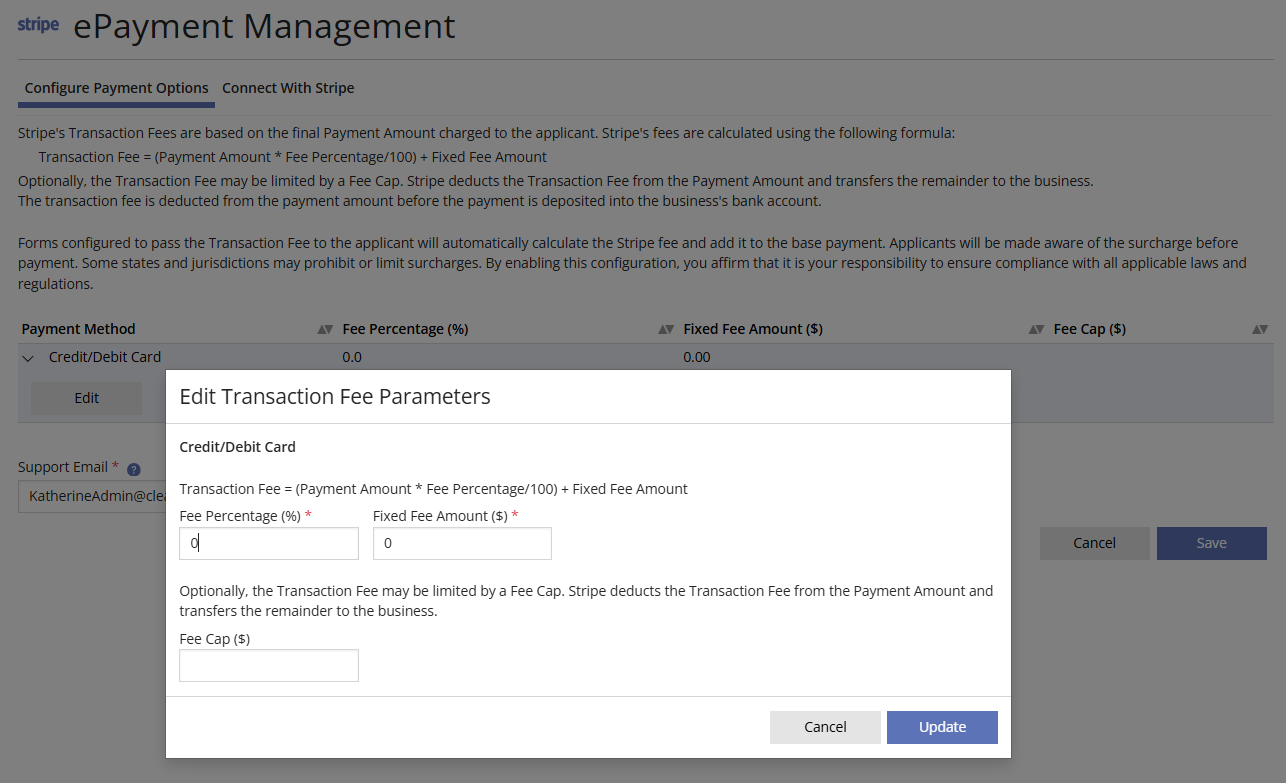
If Stripe has a Cap on the transaction fee that it charges for this payment method, that amount can be input as the Fee Cap.
Stripe deducts the transaction fee directly from the payment amount, and the remaining balance is transferred to the business.
Once the transaction fee has been configured, it must be applied within the form settings. To update the Form ePayment Configuration, follow these steps:
- Navigate to Program Design > Forms
- Select the form you want to update
- Open the ePayment Configuration section and indicate that the transaction fee will be included in the charge to the customer
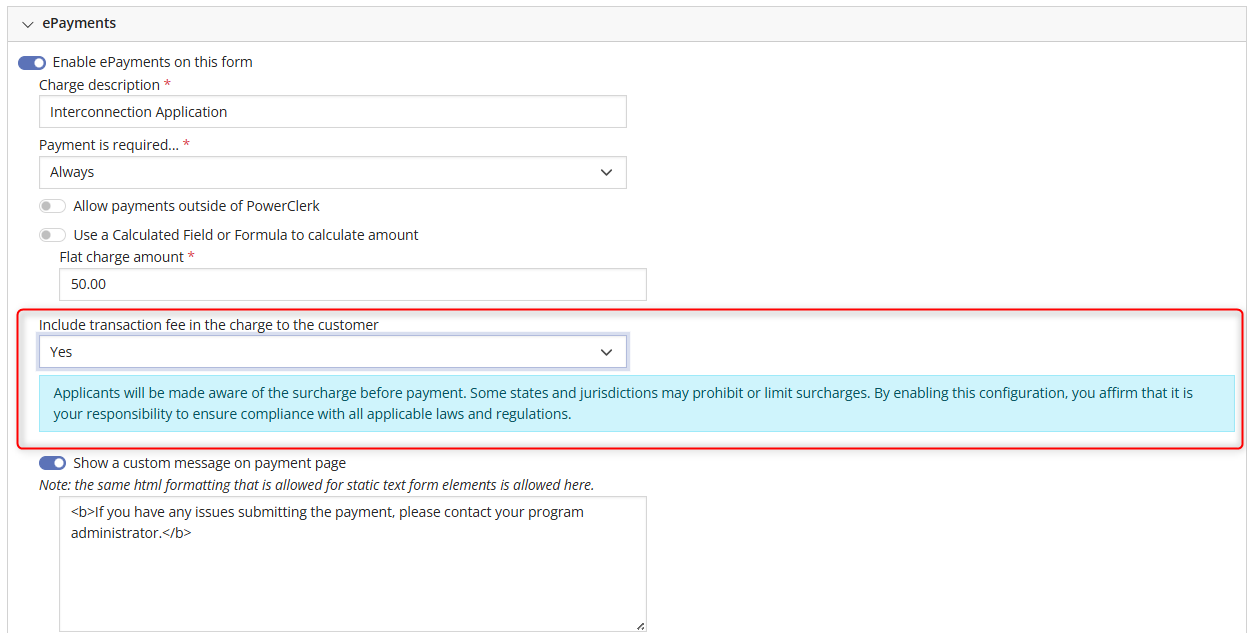
Note: By enabling this configuration, you acknowledge that it is your responsibility to ensure compliance with all applicable laws and regulations.
Configuring Payment Methods Availability
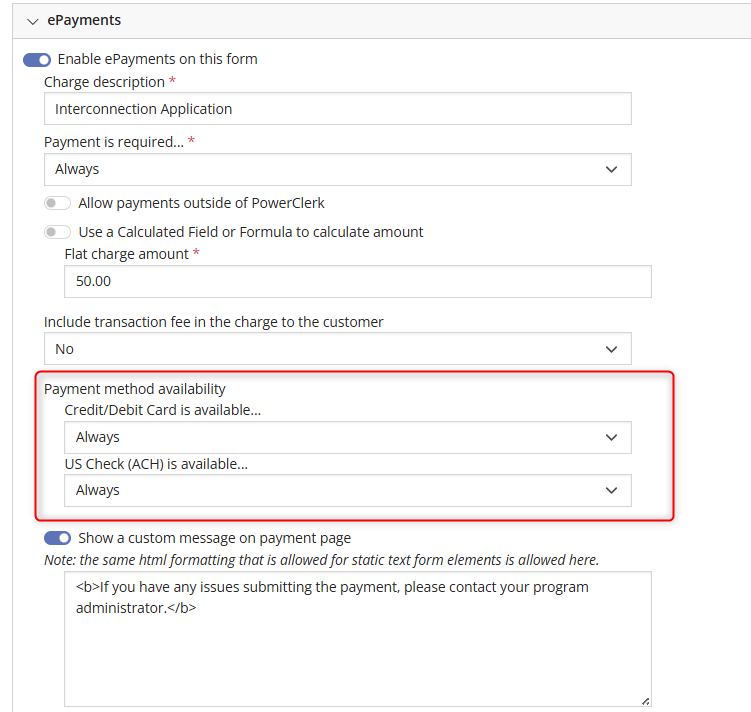
Payment method settings are configured within each Form ePayment Configuration. The list of all payment methods that the utility allows in the program is first added to the program’s ePayment configuration by a CPR Admin. The availability of any of those payment methods in a given form can then be defined by a program admin on the Configure Form page.
If both Credit/Debit and US Check (ACH) payment options have been added to your program, you will be able to choose which methods are accepted for each form individually. If more than one payment method has been added to your program, you can define when each is available by selecting one of these options:
- Always
- Conditionally (based on a calculated field or formula)
- Never
- Fallback Payment – this input is displayed when no payment method is “Always” available
This flexibility allows you to tailor payment options to the specific needs and logic of each form.
FAQs
Have additional questions? Contact us to nominate your FAQ and help others find answers to your own questions concerning this feature.
Create A Support Ticket
Not finding your answer here? Submit a question to our support team at the PowerClerk Ticket System and leverage the PowerClerk team’s expertise.